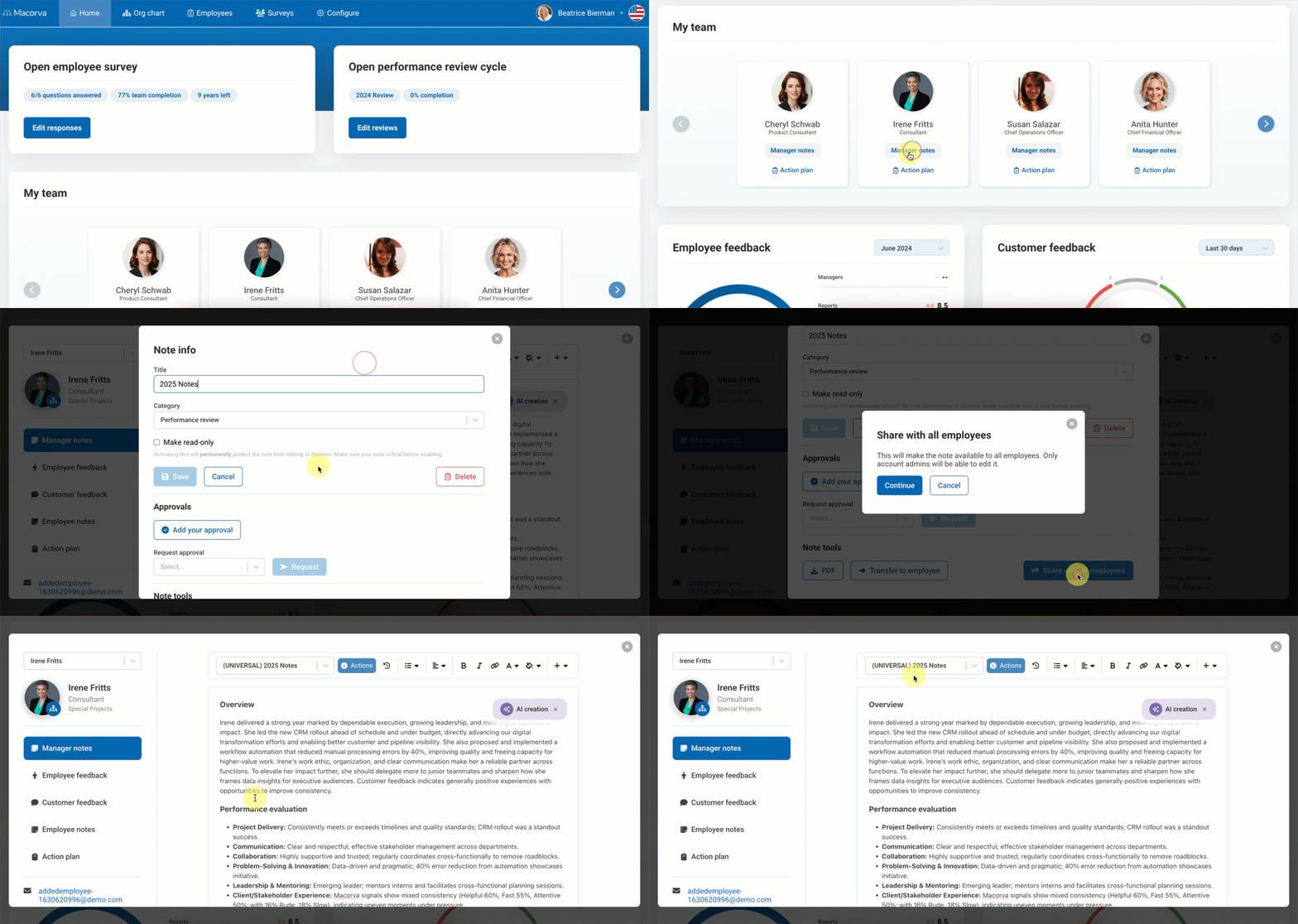
Open an existing Manager Note to edit the title, request approvals, manage visibility, or export a copy. Some actions depend on your role and the note’s settings.
Edit a Note Title
Follow these steps to edit the title of a note:
- Log into Macorva.
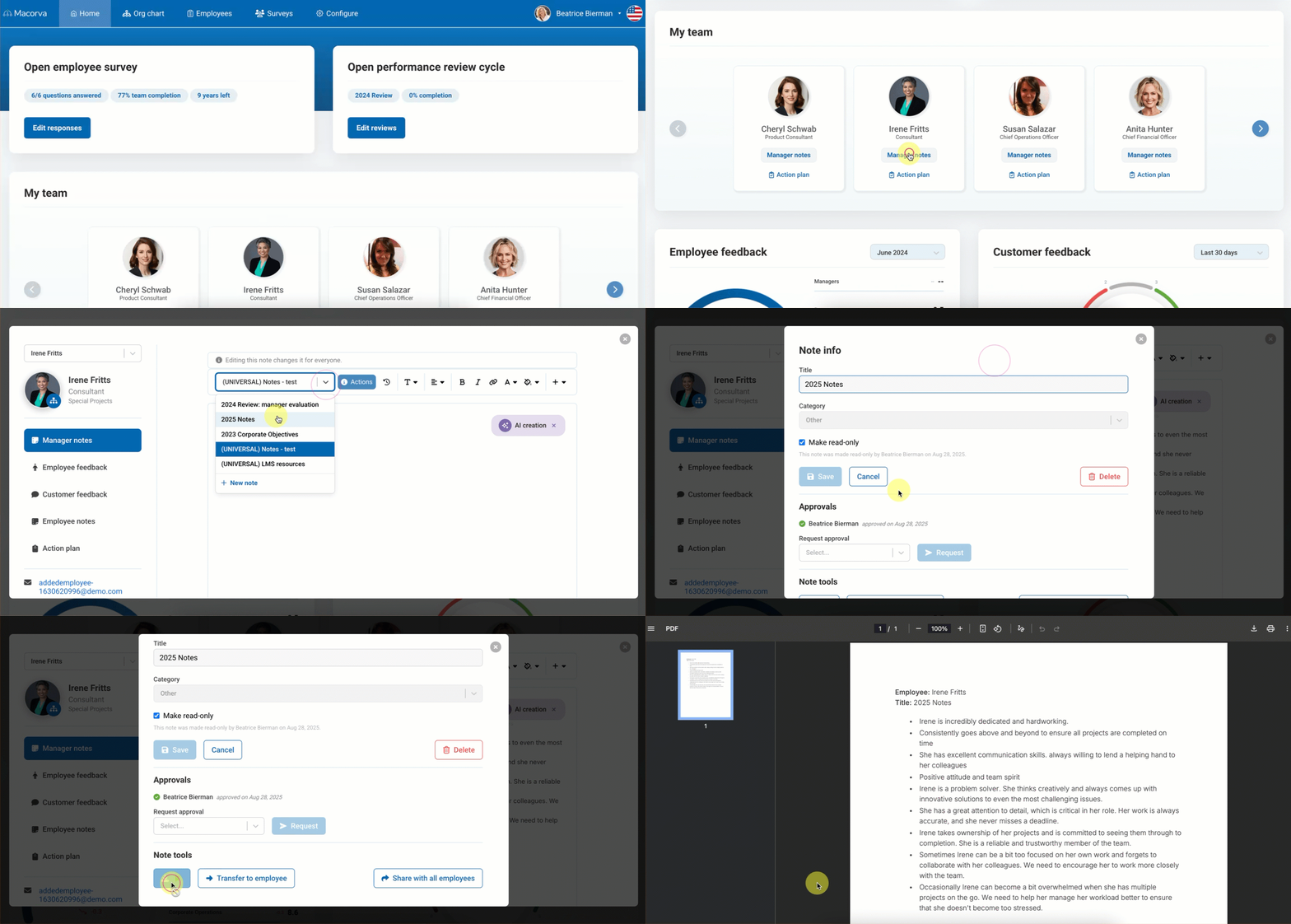
- On the homepage under My team, select the employee you’d like to add notes to by clicking Manager notes.
- In the dropdown, select the note you wish to edit the name of, and click Actions.
- The Note info screen will appear. Edit the note name in the Title section.
- Click Save to apply changes.
Make a Note Read-Only
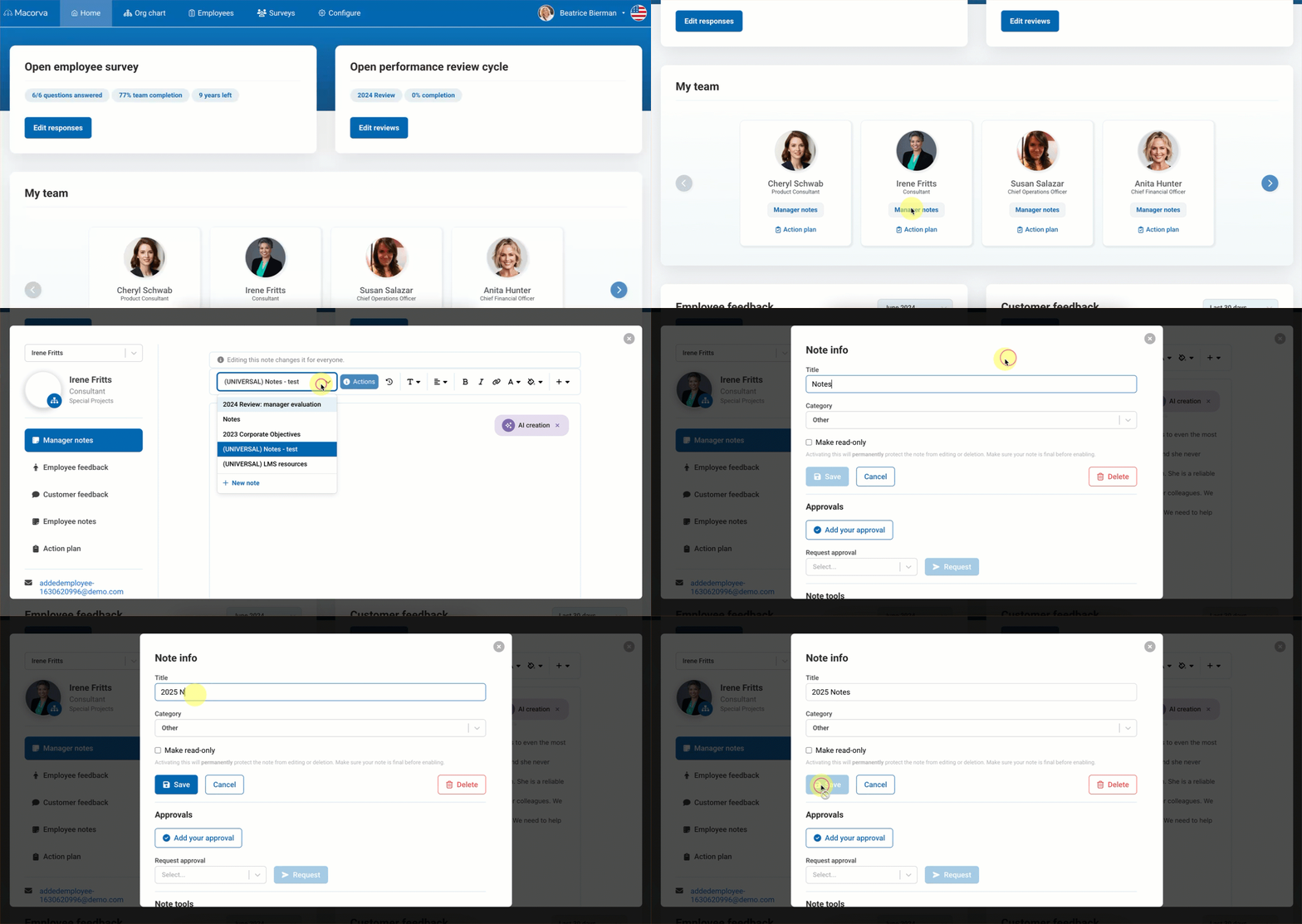
To protect a note from further editing or deletion:
- Log into Macorva.
- On the homepage under My team, select the employee you’d like to add notes to by clicking Manager notes.
- In the dropdown, select the note you wish to edit and click Actions.
- The Note info screen will appear. Click the Make read-only checkbox and then click Save.
⚠️ Important: Marking a note as read-only will permanently prevent it from being edited or deleted. Make sure your note is final before enabling this option.
Add Approvals to a Note
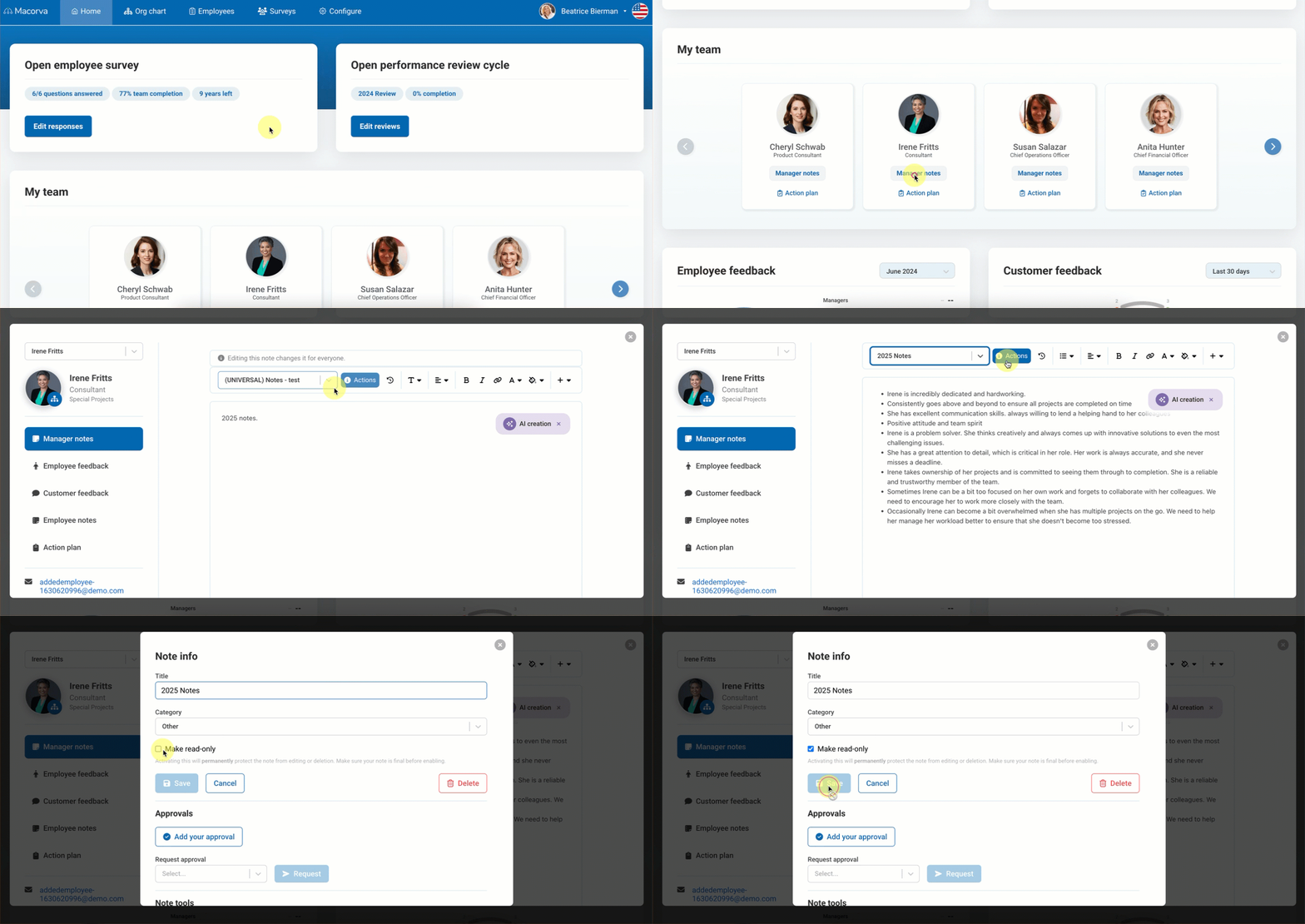
To add approvals for verification:
- Log into Macorva.
- On the homepage under My team, select the employee you’d like to add notes to by clicking Manager notes.
- In the dropdown, select the note you wish to edit and click Actions.
- The Note info screen appears. Scroll down to Approvals.
- Here you can Add your approval if necessary. A confirmation will appear stating your name and timestamp that you have approved the note.
- To request additional approvals, search for the individual’s name and click Request.
Save a Note as a PDF
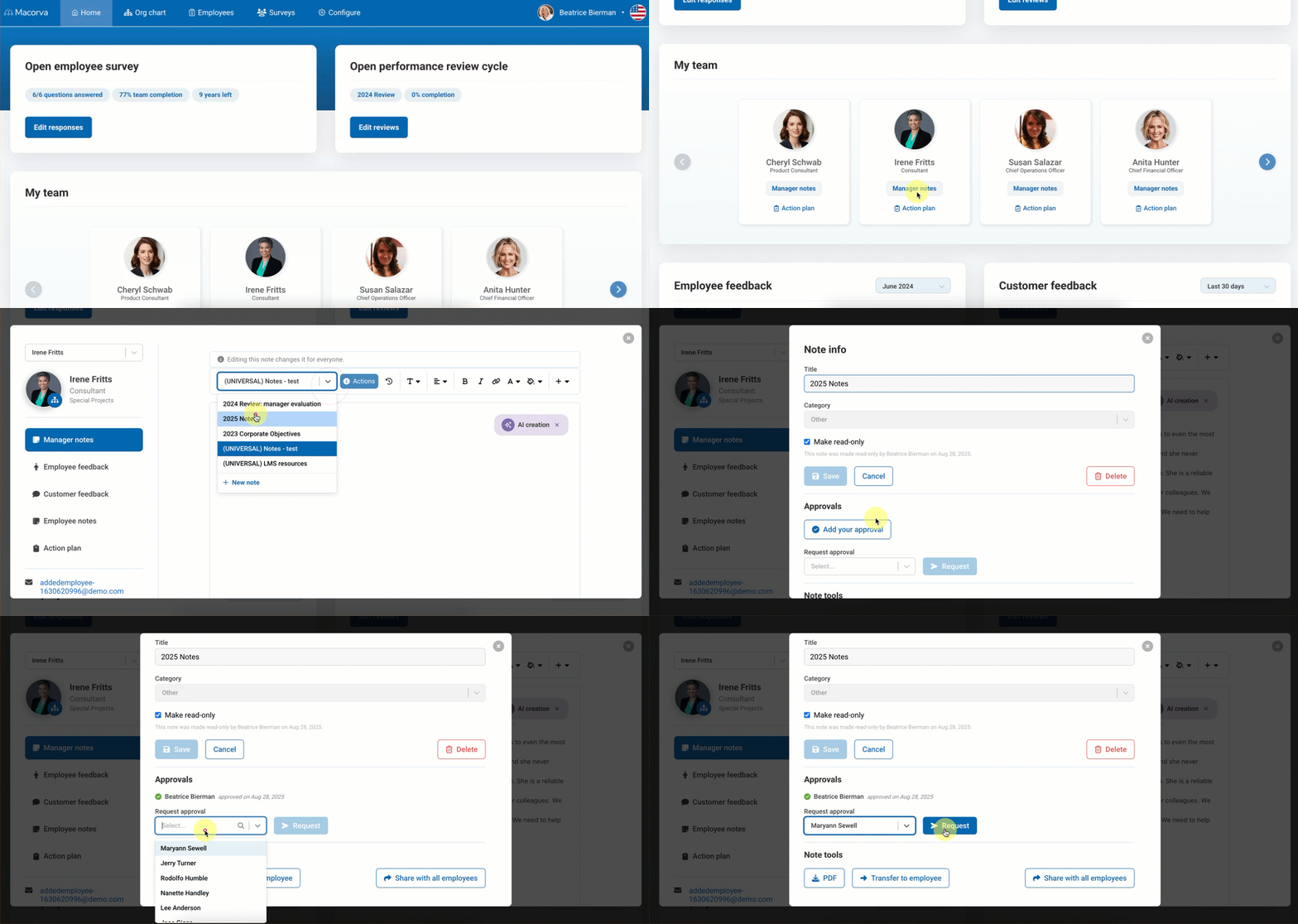
To download and share a note in PDF format:
- Log into Macorva.
- On the homepage under My team, select the employee you’d like to add notes to by clicking Manager notes.
- In the dropdown, select the note you wish to edit and click Actions.
- The Note info screen appears. Scroll down to Note tools and click on PDF.
- A new window will pop up with your notes as a PDF.
Transfer Notes to Employees
- Log into Macorva.
- On the homepage under My team, select the employee you’d like to add notes to by clicking Manager notes.
- In the dropdown, select the note you wish to edit and click Actions.
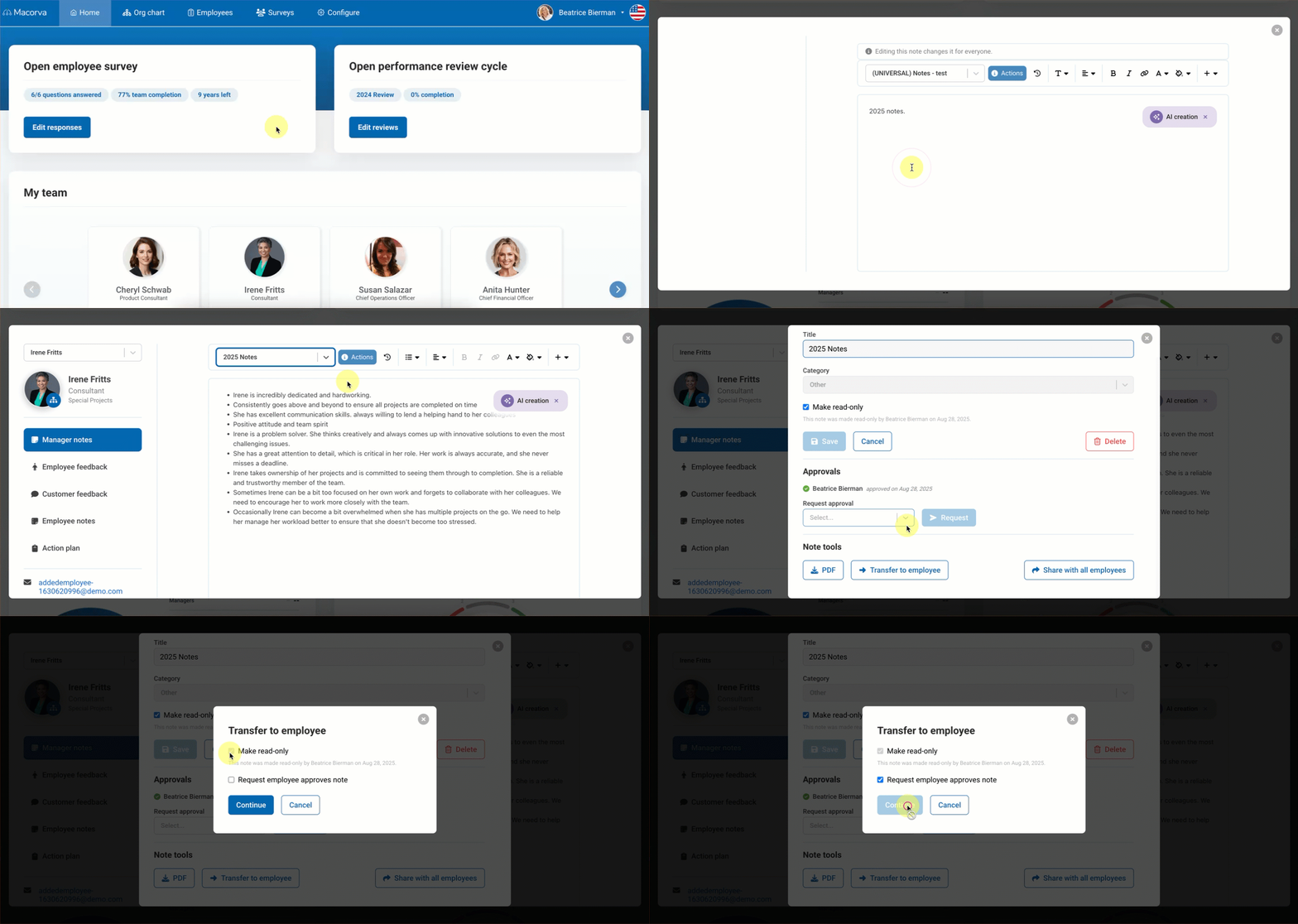
- The Note info screen appears. Scroll down to Note tools and click Transfer to employee to move this note to the selected employee.
- Choose whether to make the note read-only or request that the employee approves the note.
- Click Continue to complete the transfer.
Share Notes with all employees (Admin only)
- Log into Macorva.
- On the homepage under My team, select the employee you’d like to add notes to by clicking Manager notes.
- In the dropdown, select the note you wish to edit and click Actions.
- The Note info screen appears. Scroll down to Note tools and click Share with all employees.
- A new window will pop-up confirming the note will be available to all employees. Click Continue to confirm.
- The note will now be labeled with (UNIVERSAL) in the title.