Use Manager Notes to record observations about an employee’s work, goals, or feedback. This guide shows how to add a note and delete one that is still editable.
Add manager notes
- Log into your Macorva account.
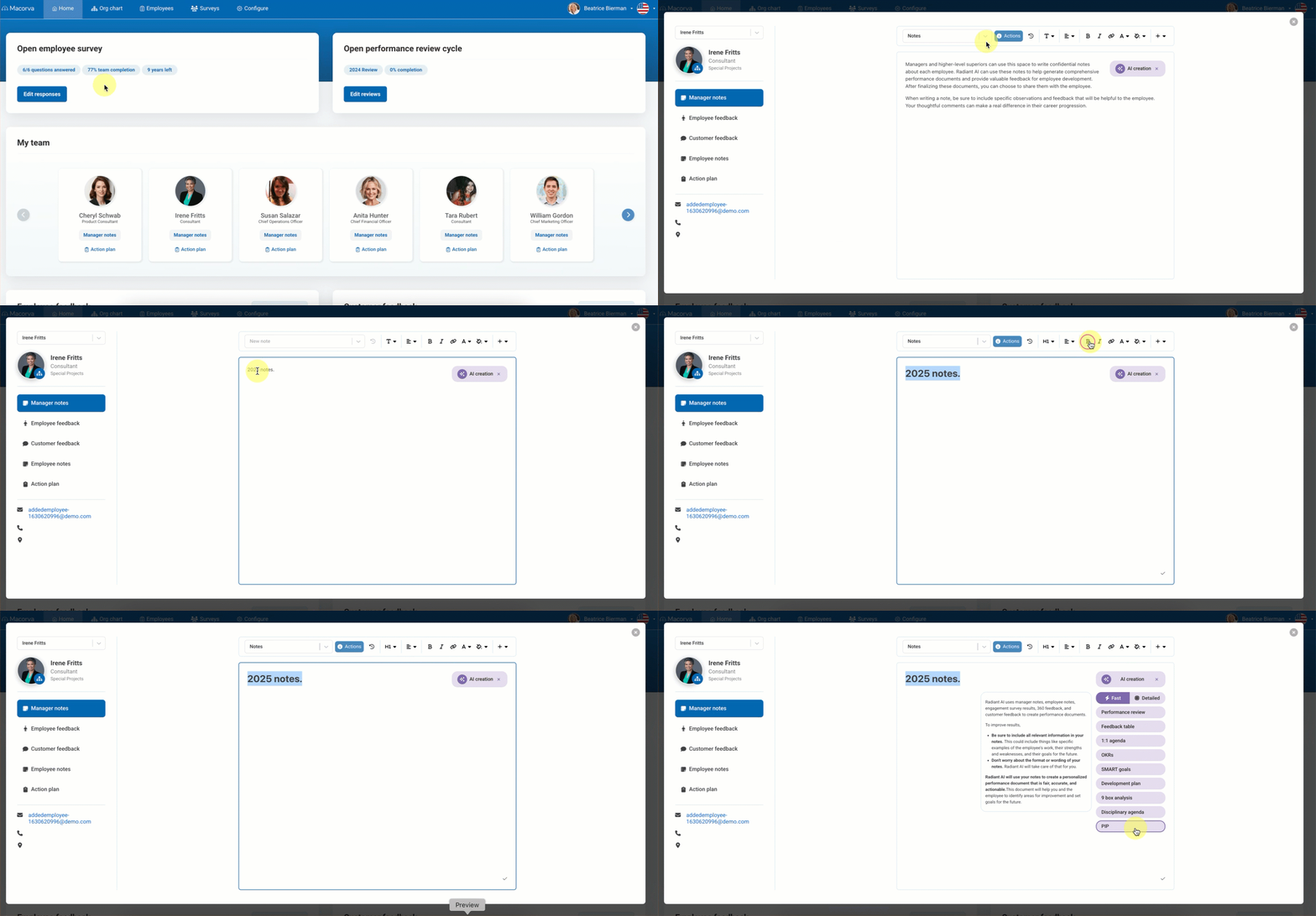
- From the homepage and under the My team section, find the employee you’d like to add notes for and click Manager Notes.
- In the manager dashboard, click the dropdown arrow and select + New Note.
- A new note window will open where you can either type directly into the note field or copy and paste notes from another source. (Notes save automatically as you type. A checkmark in the lower-right confirms the save.)
- Use the formatting toolbar to add emphasis or structure to your notes. (Formatting options include: font size, style, alignment, text color with the option to insert links, line breaks, sheets or images.)
- Add as many notes as you need. You can later combine manager notes with peer, customer, and other feedback using Macorva’s AI creation tool.
Delete manager notes
- Log into your Macorva account.
- From the homepage and under the My team section, find the employee you’d like to add notes for and click Manager Notes.
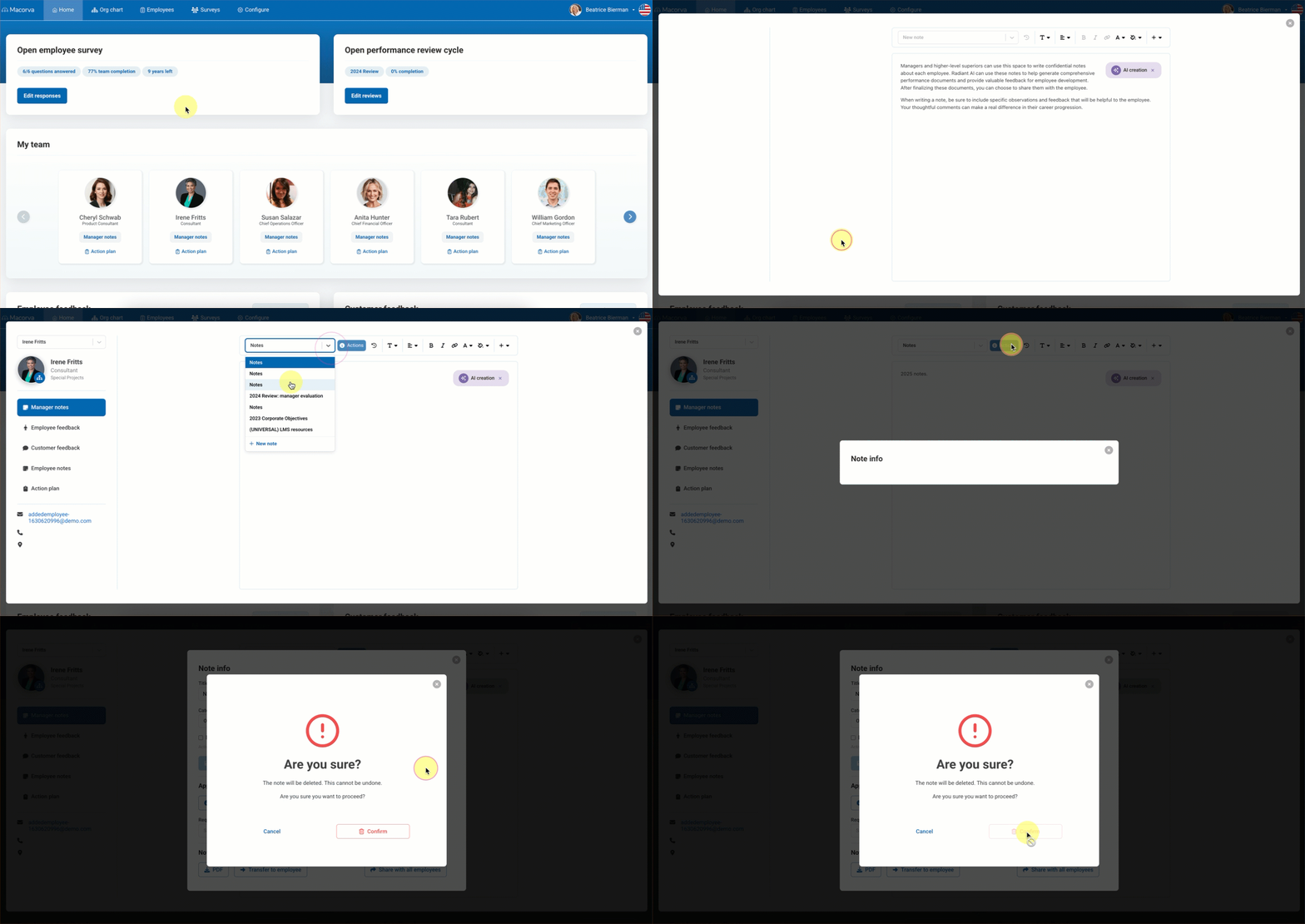
- In the dropdown of the manager dashboard, select the note you want to delete and click Actions.
- In the Note Info screen, click Delete and Confirm to permanently delete the note.